



1789417644199

| Account | ||
| Type | ||
| Amount | ||
| Frequency | ||
| Category | ||
| Startdate | ||
| Enddate | ||
| Plan only | ||
| Description | ||
| End / pause scheme today | ||
| Clone and adjust scheme | ||
| Account | |
| Current balance | |
| Date | |
| New balance | |
| Correction amount | |
| Total | |||||||||||||||||||

| Last month | - | ||
| Monthaverage this year | - | ||
| Monthaverage last year | - | ||
| Total this year | - | ||
| Total last year | - | ||
| Monthpattern this year | - | ||
| Monthpattern last year | - |
1789417644199

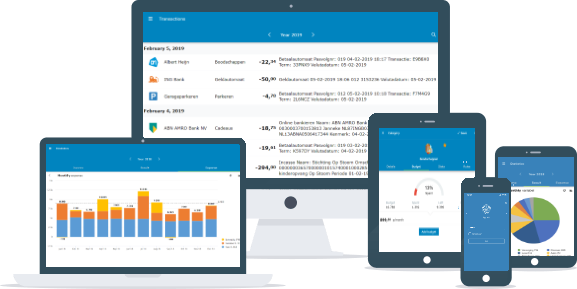
Welkom bij Spendle! Beheer gemakkelijk je persoonlijke financiën op al je verschillende apparaten.
Neem een korte tour (7 slides) met de navigatieknoppen hieronder.


Tap a transaction and assign a predefined or custom category to it. Spendle helps by suggesting categories and rules to assign similar transactions automatically.
Categorizing will take some time in the beginning, but you will be rewarded with insight and more control over your finances. You can assign a relation, attachment, receipt, memo or tag to a transaction and use it for reporting and statistics.
💡 Assign a category marked as "transfer" to keep a transaction out of result reports and statistics.
💡 Import a bankstatement, document or photo using the "share with Spendle" option on the Android and iOS app.
💡 Click on a logo of a transaction in the transactions tab to enable multi select mode and assign to multiple transactions at once.
Het rubriceren is een belangrijke stap om inzicht en grip op je financiën te krijgen. Klik op een transactie en wijs een rubriek toe. Spendle zal je helpen met suggesties voor rubrieken en actieregels om gelijke transacties voortaan automatisch toe te wijzen.
Voeg bijlagen, bonnetjes, opmerkingen, relaties of tags toe aan een transactie om deze te gebruiken in rapportages en overzichten.
💡 Kies voor onderlinge rekening transacties een rubriek gemarkeerd als "onderling" om deze uit de resultaat overzichten te houden.
💡 Je kunt bestanden of foto's gemakkelijk "delen met Spendle" als je de app hebt geïnstalleerd.
💡 Klik op het logo van een transactie om deze te selecteren en meerdere transacties tegelijk toe te wijzen.

In het tab "inzicht" kun je je inkomsten- en uitgavenpatroon inzien en bepalen waar je nog geld kunt besparen. De inzicht mogelijkheden zijn uitgebreid, dus neem de tijd om rond te klikken, alle dimensies van je financiën te analyseren en waar nodig aan te passen.
Rapportages
Spendle heeft een selectie van rapporten die je kunt gebruiken. Bij de instellingen van een rapport kun je de groepering en sortering naar eigen behoefte aanpassen en opslaan. Een rapport kan geprint worden, geëxporteerd als PDF bestand of naar Excel.

Optionally assign a budget to keep closer track of your spending progress. Buggeting can help you save money and detect budget deviations instantly. Budget deviations are indicated as "position". The "positioningmethod" allows you to match the positioning to the categoy's spending frequency (daily, monthly or yearly).
Prognosis
With a budget assigned to all categories, you can enable the prognosis mode via the button in the insight tab. This adds additional prognosis information which uses your budget, actual and position information to create an end-of-year forecast.
💡 Adjust your budget periodically using the position to improve the prognosis reliability.
Door te budgetteren kun je nog gerichter besparen en grip krijgen op je financiën. Open een rubriek via het pijltje rechts ervan in het transactie overzicht en ken een budget toe. Het tabblad "patroon" helpt bij het instellen van een budget dat past bij je historische uitgaven.
Afwijkingen van je budget worden weergegeven als "positie". Via de "positiemethode" kun je opgeven hoe de positie moet worden bepaald; dagelijks, maandelijks of jaarlijks. Als je bijvoorbeeld boodschappen doet, kun je de positiemethode op dagelijks zetten zodat je per dag kunt zien of je meer of minder uitgeeft. Voor kleding kun je de positiemethode op jaarlijks zetten als je uitgaven hiervoor over het jaar verspreid zijn.
Prognose
Als je aan alle rubrieken een budget hebt toegewezen kun je de "prognosemodus" inschakelen via de knop bij "inzicht". Hierna wordt de "prognose" zichtbaar die wordt berekend op basis van budget, werkelijke inkomsten/uitgaven en de positie. Met de prognose zie je wat je aan het einde van het jaar nog overhoudt.
💡 Pas je budget periodiek aan op basis van de positie om de betrouwbaarheid van de prognose te verbeteren.

Voor een overzicht van je totale vermogen kun je al je bezittingen en schulden als rekening toevoegen bij tab "saldo". Je kunt spaardoelen toevoegen voor bijvoorbeeld vakanties, studie kinderen of onvoorziene uitgaven.
Bestedingsruimte
Als je alle rekening hebt opgevoerd zie je in het tabblad "saldo" wat je nog te besteden hebt. Met de prognosemodus aan krijg je ook inzicht in het toekomsting verloop van je vermogen. Door je bezittingen, schulden en persoonlijke spaardoelen hierin mee te nemen, krijg je een duidelijk beeld van je financiële situatie en kun je actie ondernemen om je doelen te bereiken.
Profielen
Via het icoon rechtboven kun je de de gegevens filteren per rekening. Meerdere rekeningen kun je combineren in een profiel. Maak bijvoorbeeld een profiel "betaalrekeningen" waarin de rekeningen van de kinderen niet zijn opgenomen. Of een profiel vermogen waarin ook de WOZ waarde van je huis en hypotheek zijn opgenomen.


Spendle is 14 dagen gratis te proberen. Na de proefperiode kun je een jaarlijks abonnement aanschaffen om Spendle te blijven gebruiken. Actuele prijzen zijn te vinden in het menu "meer" onder het gedeelte "licentie".
Bezoek spendle.me voor meer hulp, feedback en instructievideo's of neem info@spendle.com.


| Name | |
| Show budgets | |
| Accounts | |
| Balance |

| Name | |
| Store filter |
| Date | Accountname | Relation | Description | Transactiontype | Grouptype | Group | Categoryname | Amount | Memo | Running balance (Beta) |
|---|

| Accounts | |||
| Sync period | |||
| From | |||
| Until | |||
| Status | |||
| Number | |||
| Clear category | ||
| Add category: | ||
| Date | |
| Category | |
| Tag | |
| Account | |
| Bookaccount | |
| Relation | |
| Memo |


